
The gatekeeper of reality is
quantified imagination.
quantified imagination.


Project "ASP.Net 3.5 Master Pages"
|
Purpose The purpose of this project is to demonstrate how to create and utilize .Net 3.5 master pages in conjunction with ASPX web pages. How I Approach This Project As a web researcher/developer I had the opportunity to get rolling with .Net 3.5 months before it was released. Because of this I've developed a variety of ASP.NET 3.5 web applications; this is among one of them which was taken out of a larger context. In this case, there is no CSS stylesheet or Javascript file. However, in order to demonstrate how to reference those types of objects, the .Net placeholders remain for them so that you can see how to reference those types of external files. |
 (Enlarge) |
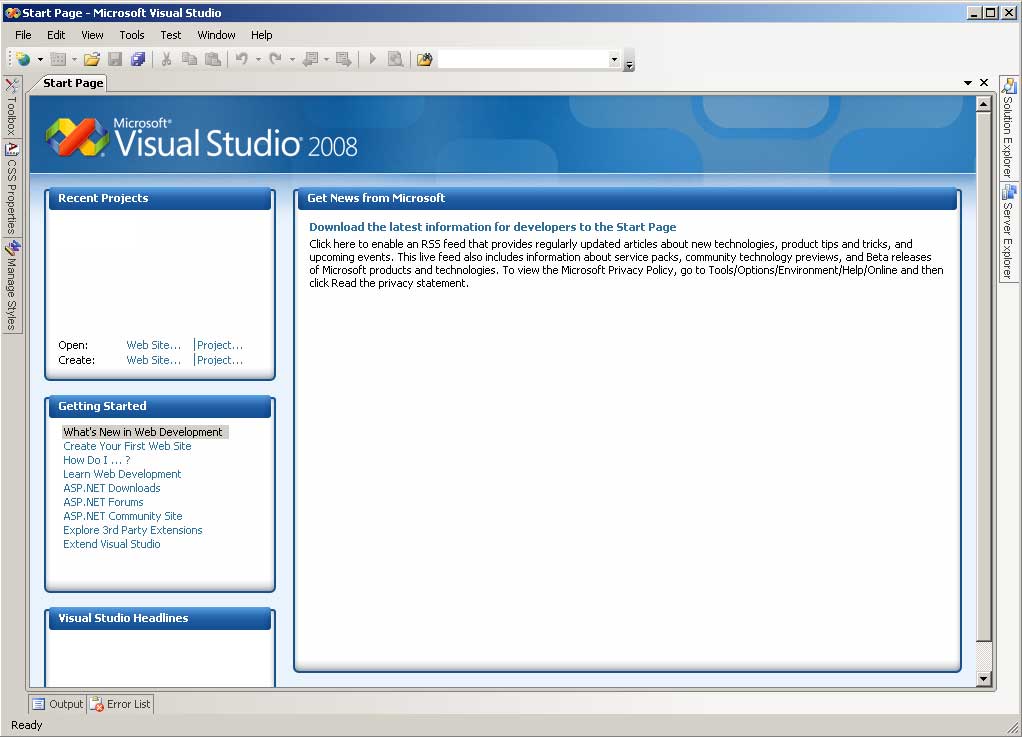
Open Visual Studio 2008. | |
 (Enlarge) |
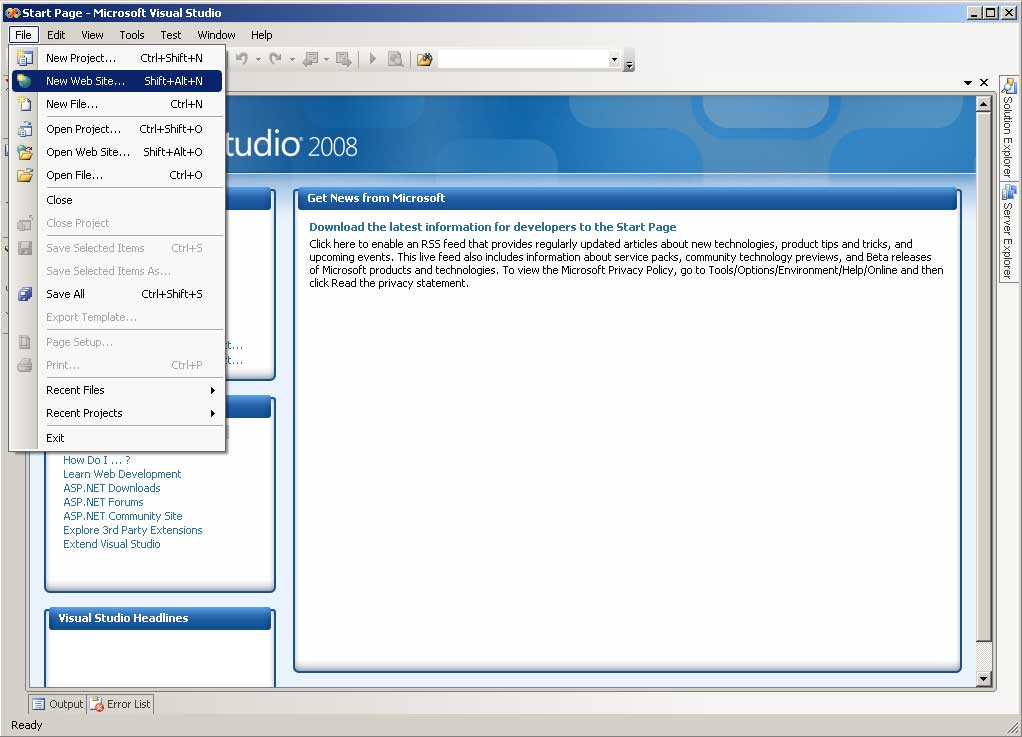
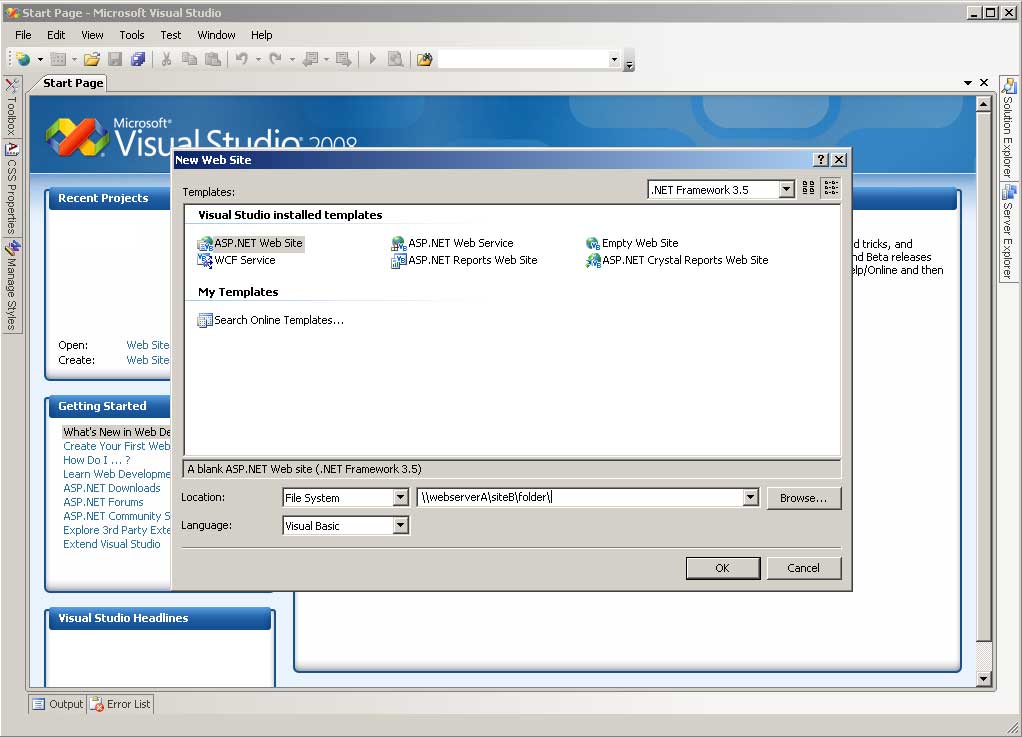
Under the File Menu select "New Web Site". | |
 (Enlarge) |
|
|
 (Enlarge) |
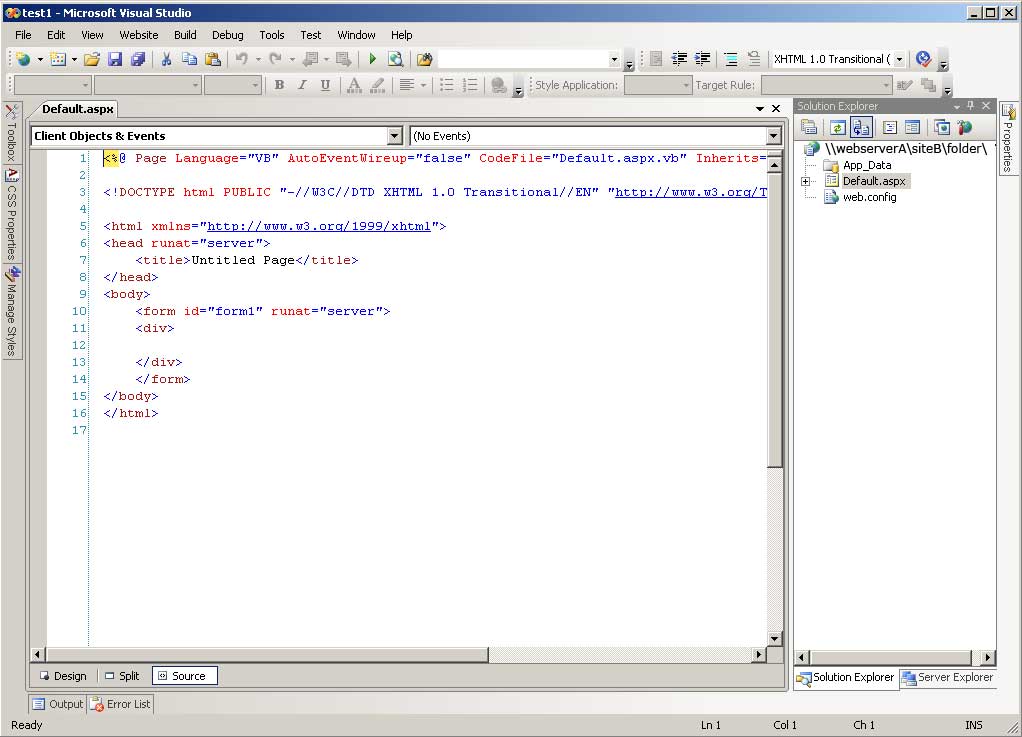
You will notice that a default web page has been created (Default.aspx). | |
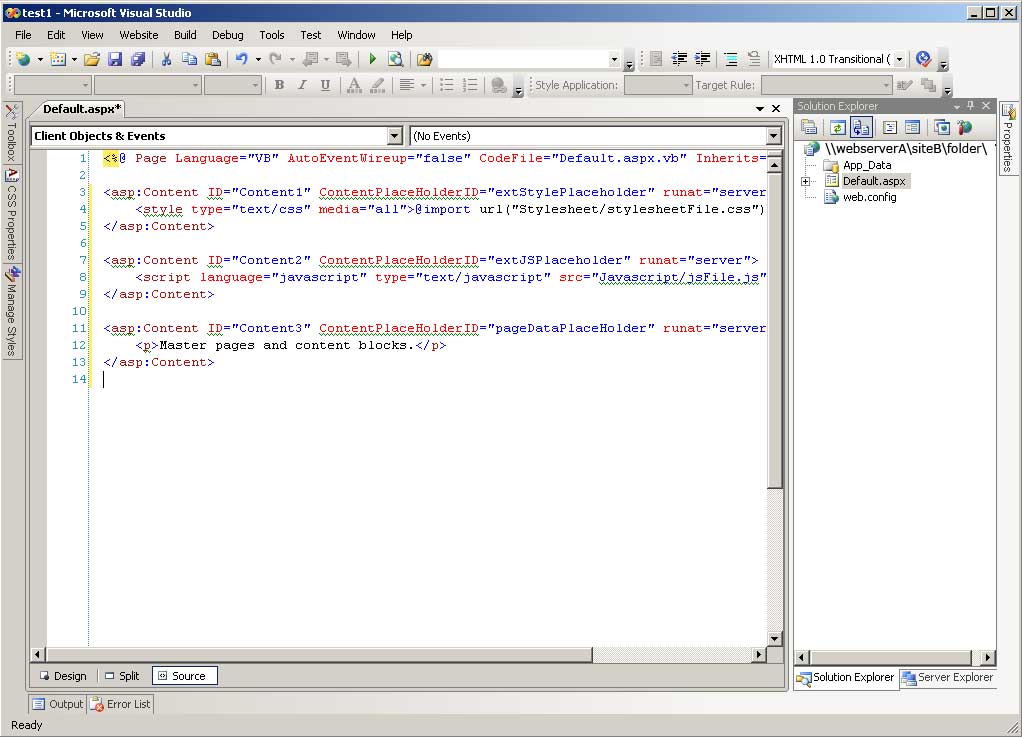 (Enlarge) |
|
|
 (Enlarge) |
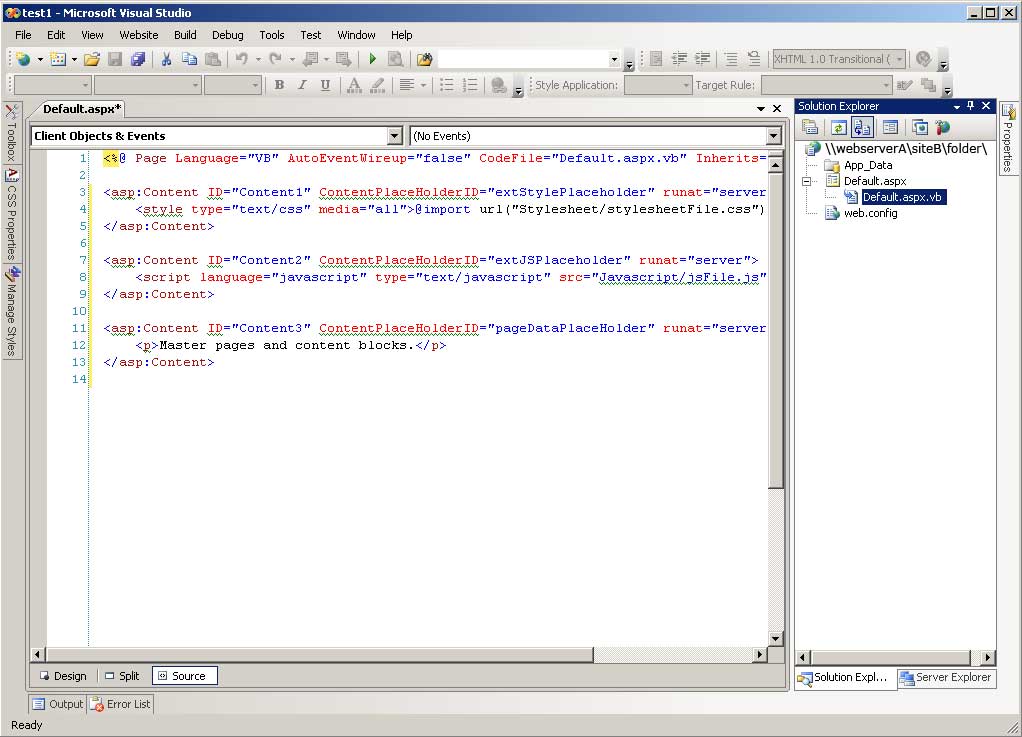
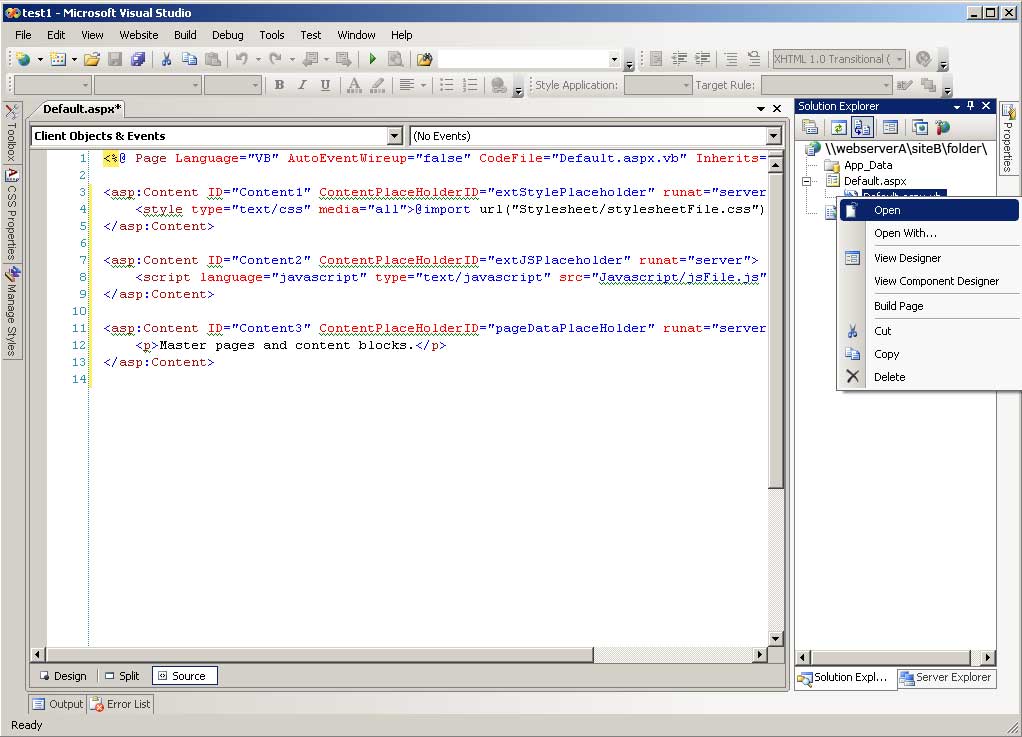
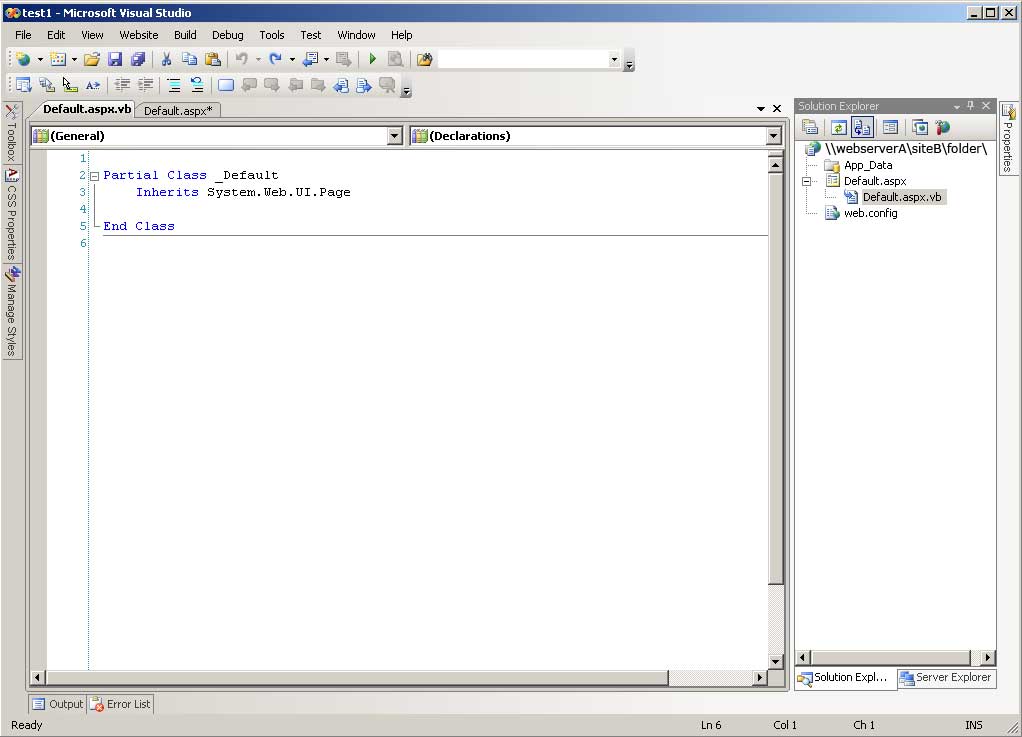
Under Solution Explorer, expand "Default.aspx". The VB (code-behind) page will be revealed. | |
 (Enlarge) |
|
|
 (Enlarge) |
|
|
 (Enlarge) |
|
|
 (Enlarge) |
|
|
 (Enlarge) |
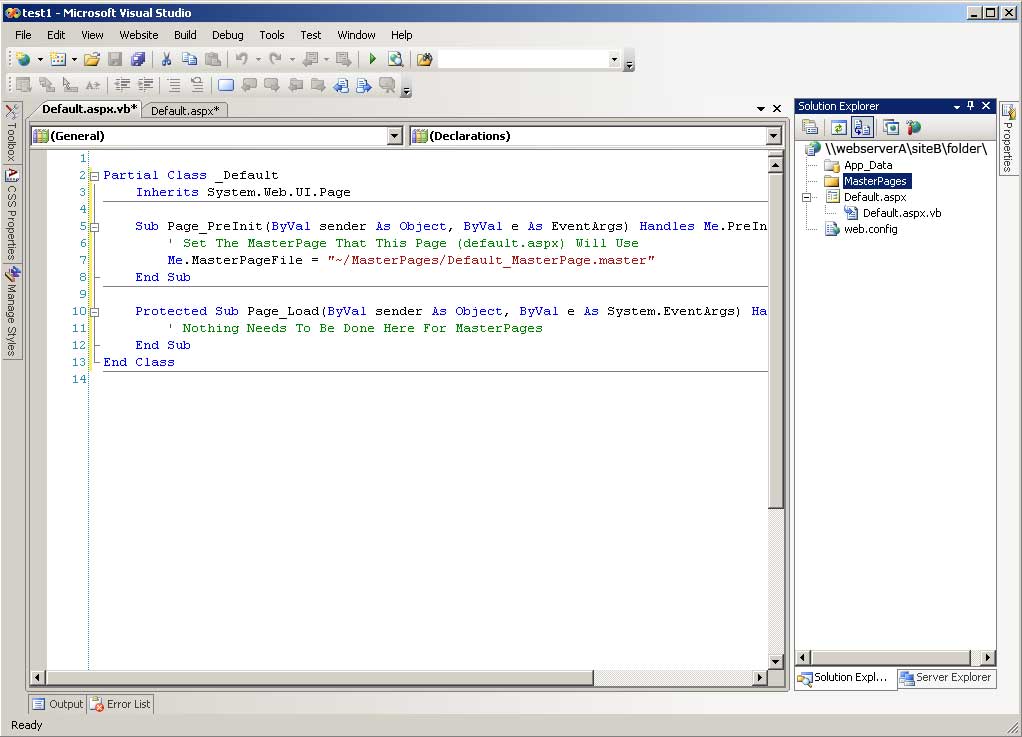
Enter the name of the folder as "MasterPages". | |
 (Enlarge) |
|
|
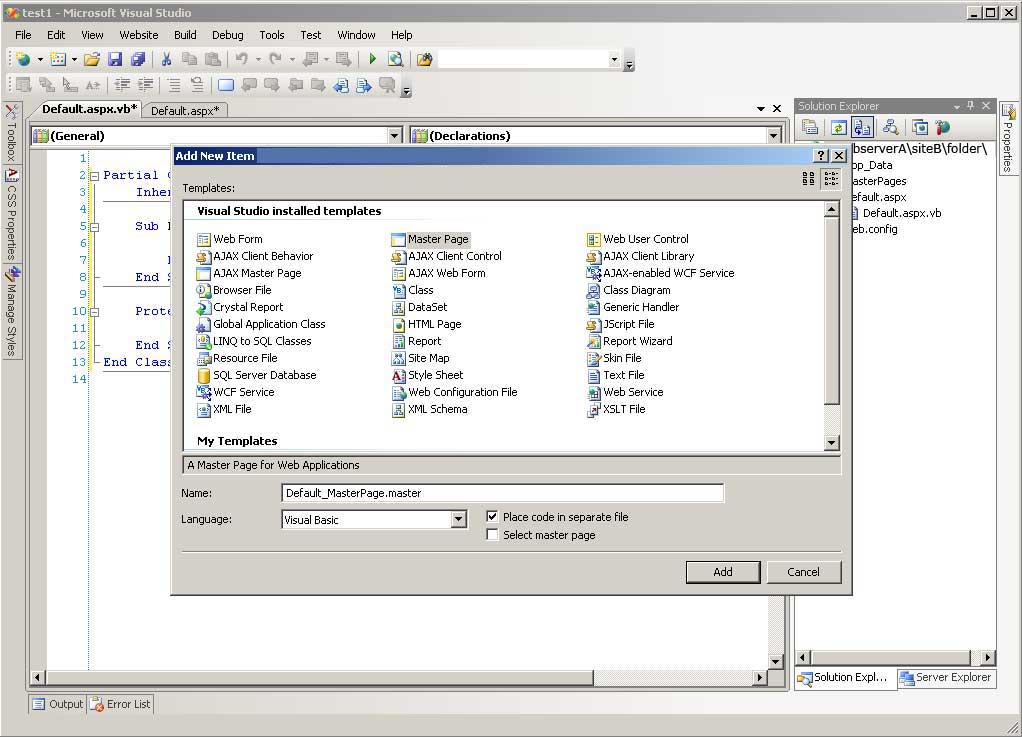 (Enlarge) |
|
|
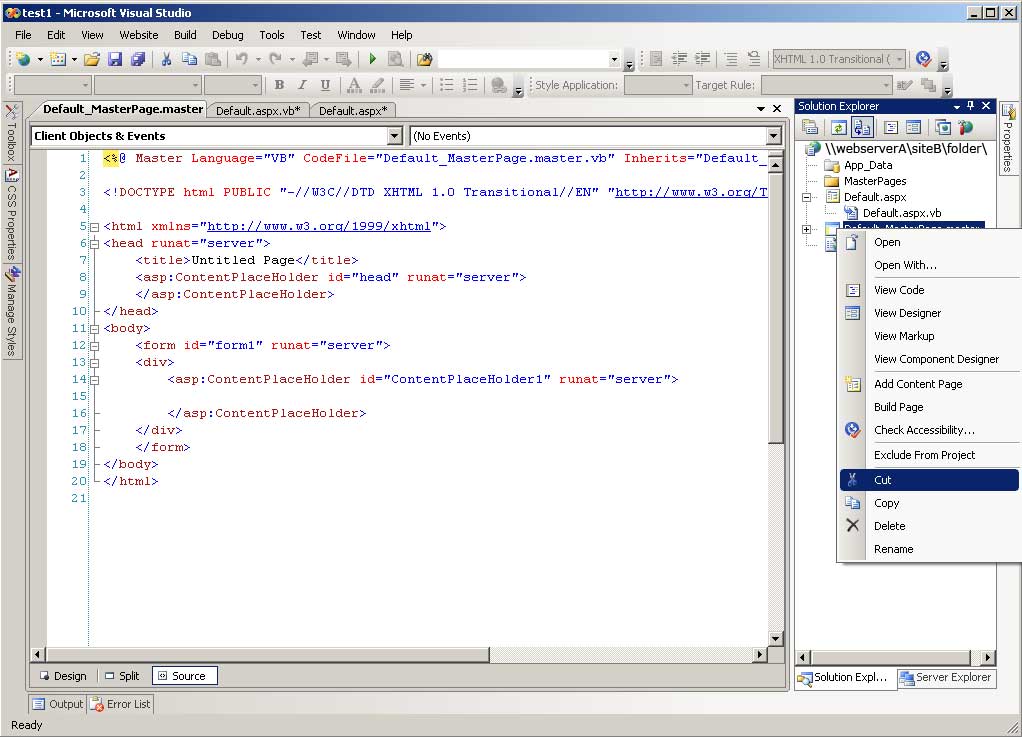 (Enlarge) |
|
|
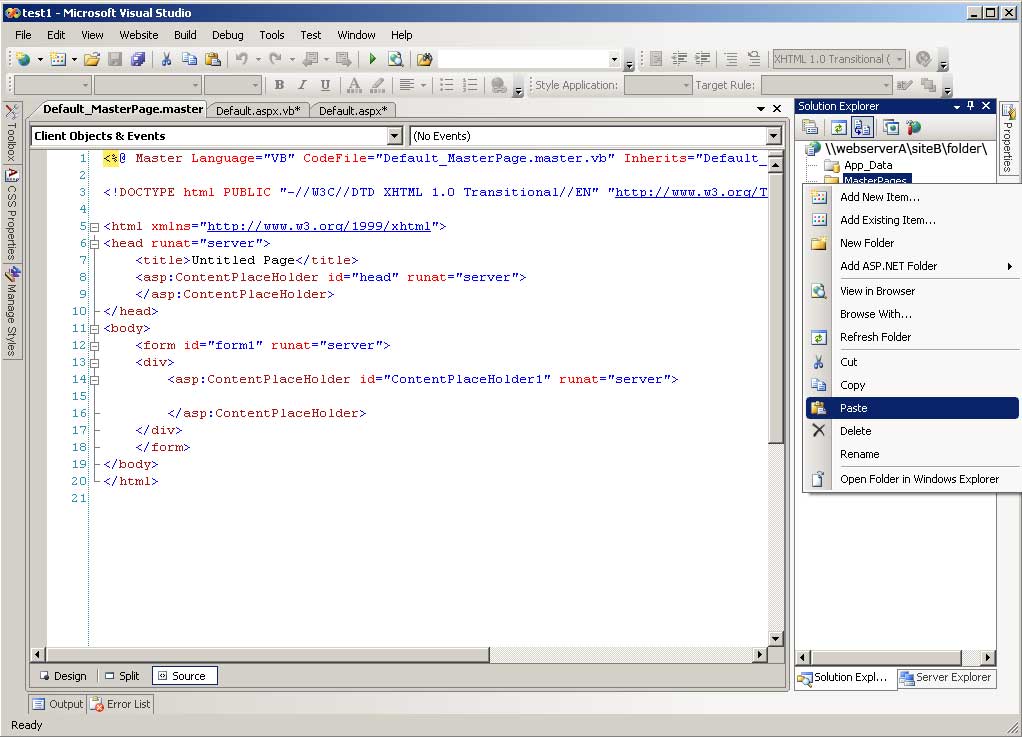 (Enlarge) |
|
|
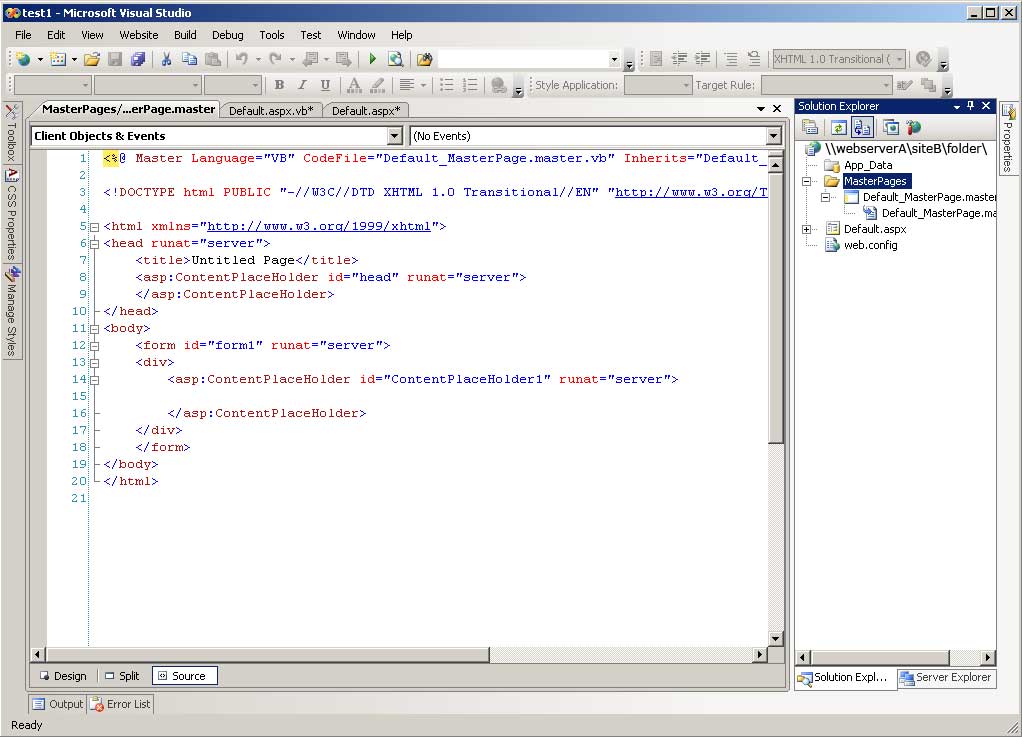 (Enlarge) |
The master page and its code-behind page should now be under the folder named "MasterPages". | |
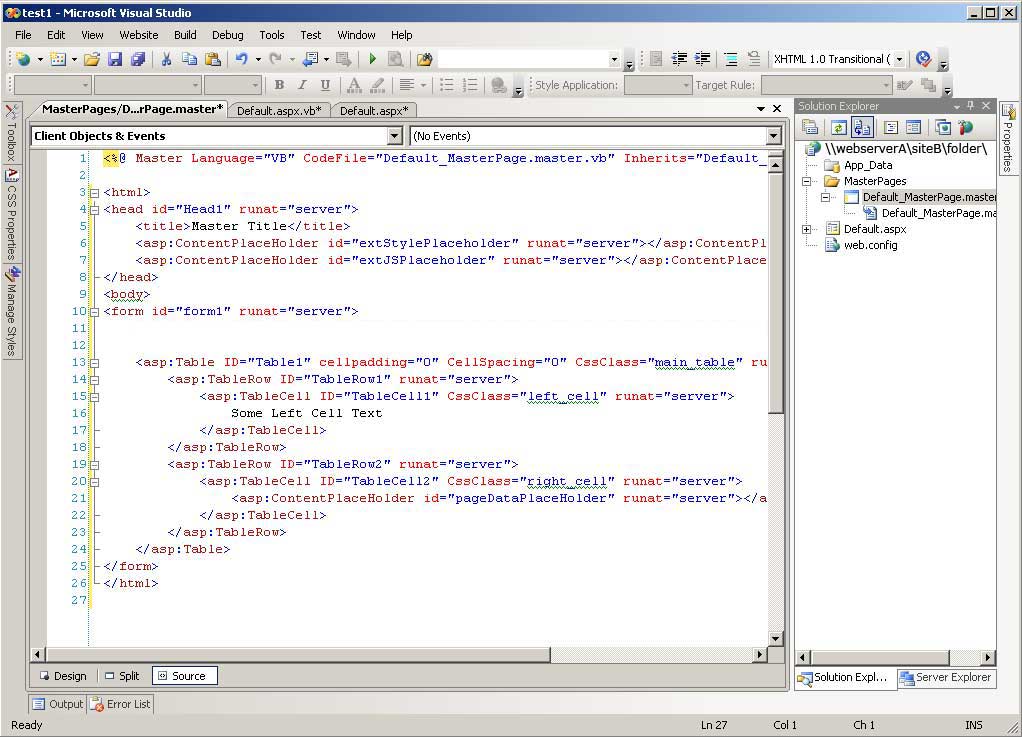 (Enlarge) |
|
|
 (Enlarge) |
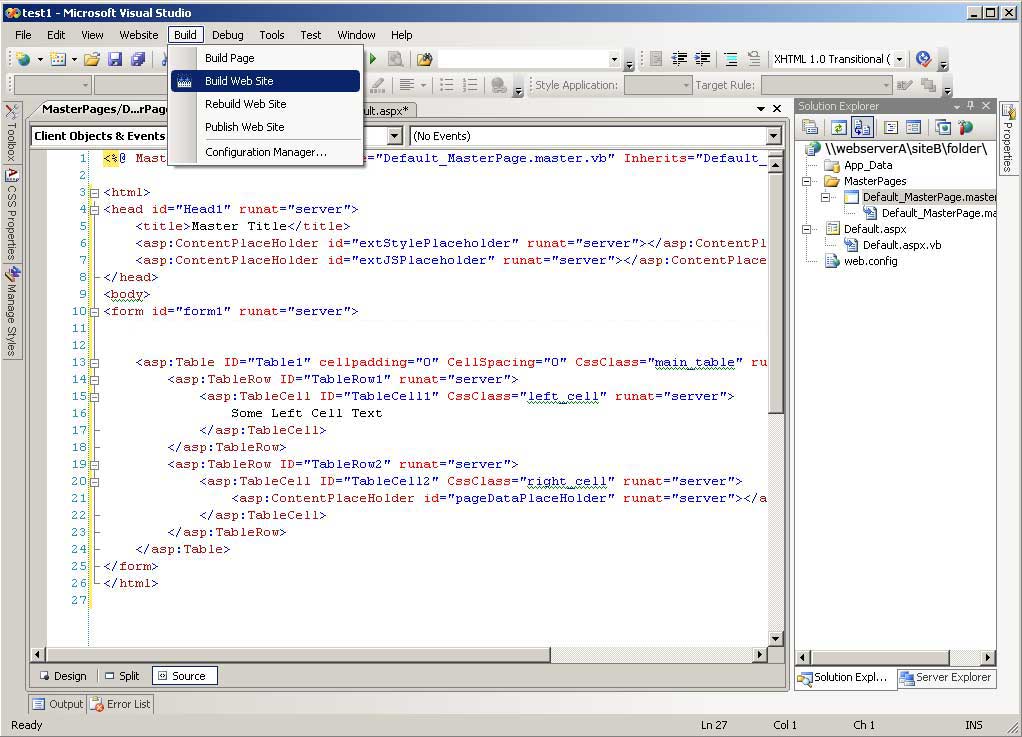
Congratulations! We are now ready to build what we've put together. Under the Build menu, select "Build Web Site". |
|
 (Enlarge) |
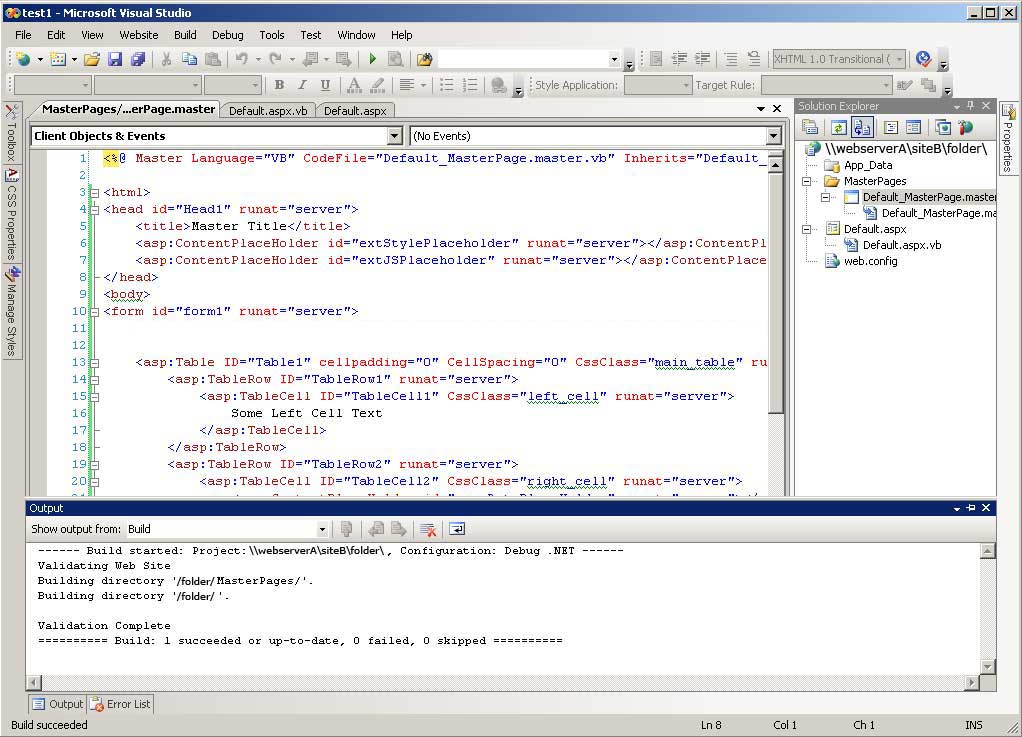
The build should succeed and you can now begin experimenting with Default.aspx by typing in the URL of that web page in your web browser and studying the output. | |
<html>
<head id="Head1" runat="server">
	<asp:ContentPlaceHolder id="extStylePlaceholder" runat="server"></asp:ContentPlaceHolder>
</head>
<body>
</body>
</html>
<asp:Content ID="Content1" ContentPlaceHolderID="extStylePlaceholder" runat="server">
	<style type="text/css" media="all">@import url("Stylesheet/stylesheetFile.css");</style>
</asp:Content>
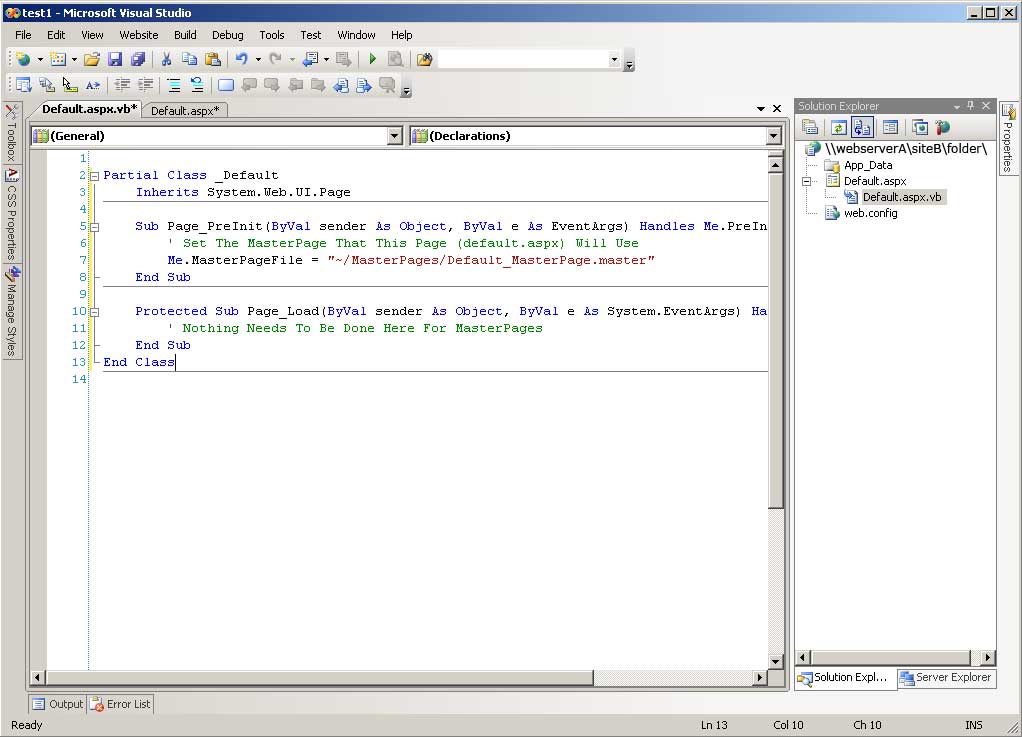
Sub Page_PreInit(ByVal sender As Object, ByVal e As EventArgs) Handles Me.PreInit
	' Set The MasterPage That This Page (Default.aspx) Will Use
	Me.MasterPageFile = "~/MasterPages/Default_MasterPage.master"
End Sub

